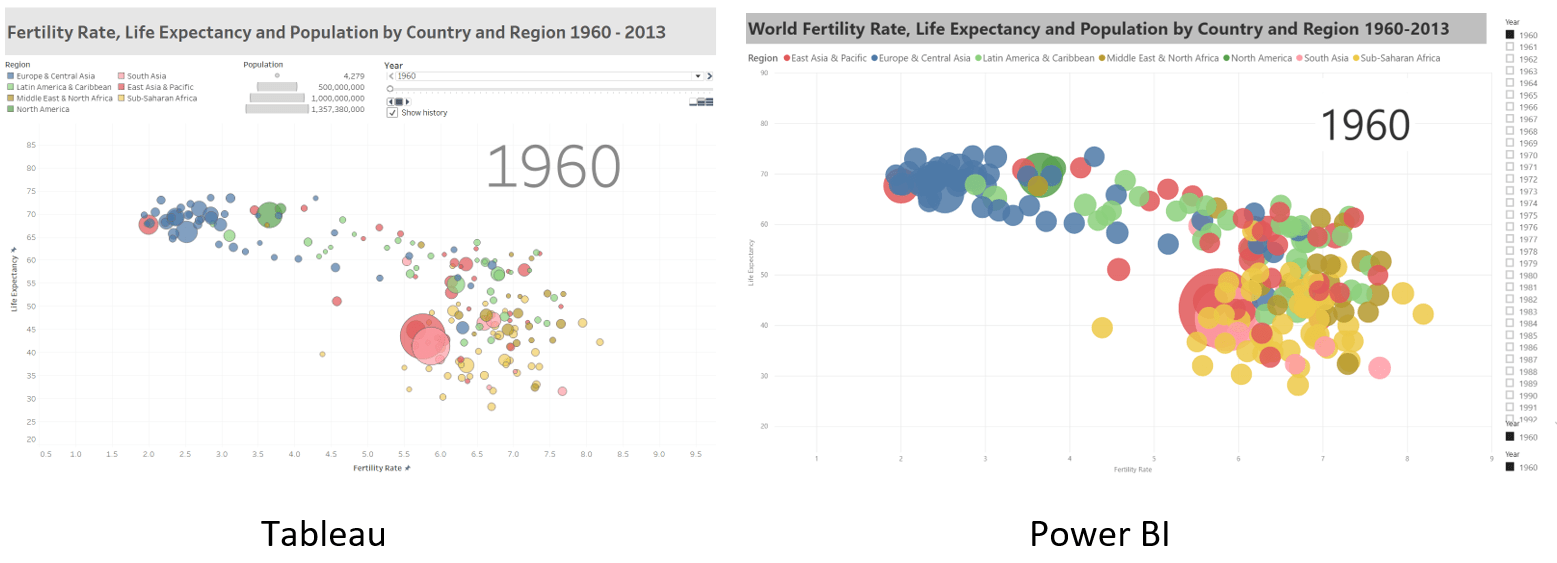
I recently finished Factfulness: 10 Reasons We Are Wrong About The World – And Why Things Are Better Than You Think” by Hans Rosling. This book was recommended by Bill and Melinda Gates and I had heard about it from some other sources. This book is so needed right now as it artfully melds the importance of data, our biases, how to deal with them and change our thinking for the betterment of not only ourselves but of the planet as a whole. When we are able to do this, we will really be able to solve some of the world’s problems.
I wanted to create his now famous Bubble graphs. I found that it was a part of Super Data Science’s Tableau 10 Advanced Training: Master Tableau in Data Science course on Udemy.
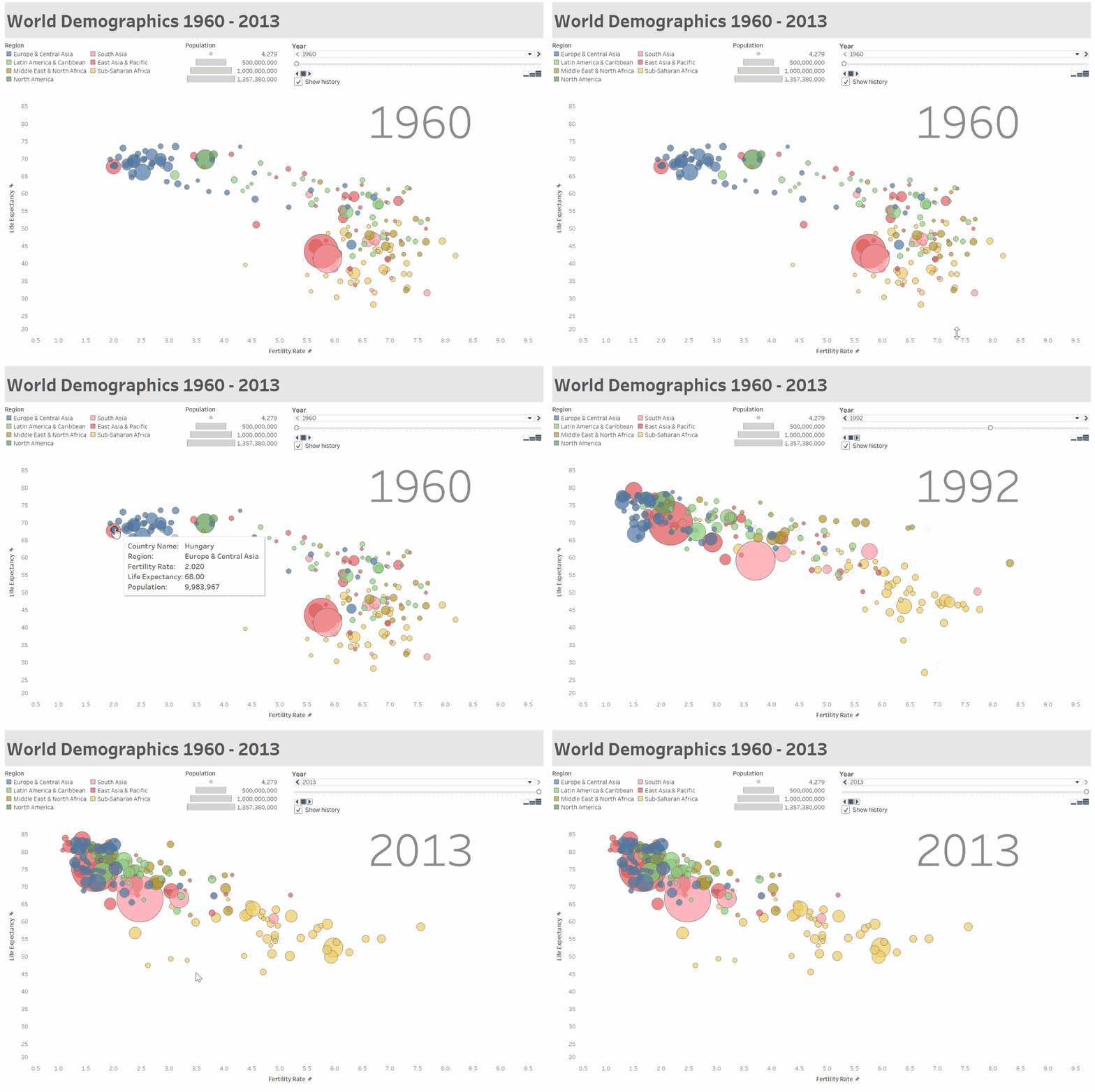
So my first shot was with Tableau and then later I gave it a try in Power BI and decided I would compare and contrast here. Following are gifs of the animations. First Tableau…
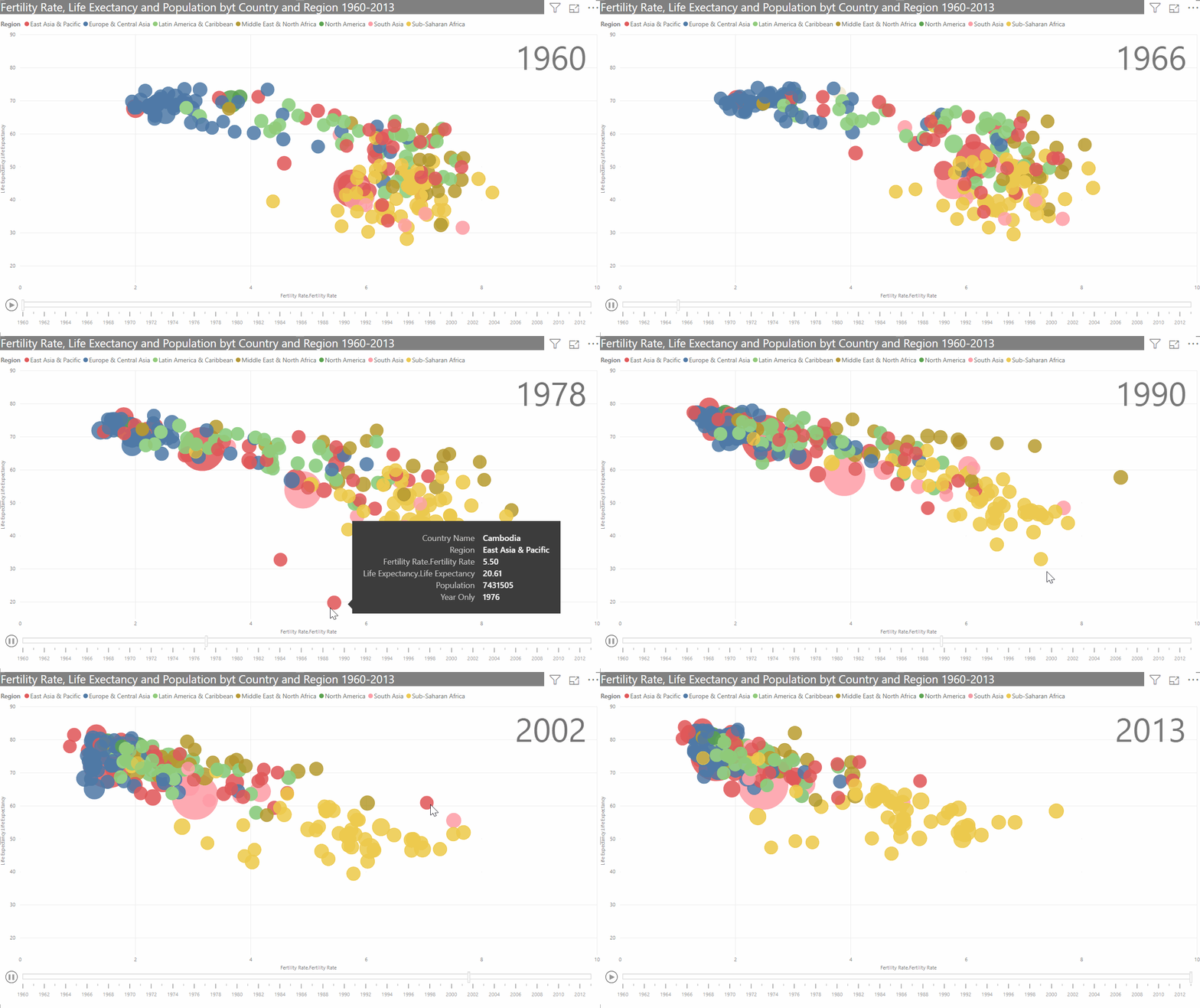
And then Power BI…
This visualization shows five dimensions, namely:
- Fertility Rate (x-axis)
- Life Expectancy (y-axis)
- Population (size of bubble)
- Region (color)
- Time (animation)
The first thing you should notice is the whole world has improved in life expectancy and fertility rate since 1960! Much of the world started at the lower right side of the graph in 1960 and moved to the upper left side by 2013! With the usual filtering of regions and highlighting of countries, you can see where the more progress is still needed, but what a remarkable shift!
From a tool comparison perspective though, one thing you may notice is the difference in the sizing of the bubbles. Tableau allows for more control over the sizing of the bubbles in relation to the actual value, which makes for a more accurate visualization. In Power BI, you are not able to get a very representative sizing to value. In addition, because transparency is not an option when choosing the color of the bubbles (only the background), it further exacerbates the sizing problem and makes the countries harder to distinguish. (If someone has a coding solution for this, please let me know in the comments!)
The data for this visualization came from 4 different data tables from the UN:
- A Population Table with Country Name and code as well as the population by year with each year as a column.
- A Fertility Rate Table laid out like the Population Table
- A Life Expectancy Table also laid out like the Population Table, and
- A Metadata Table which provided the Country Name and codes along with the Region data.
The Year data needed to be transposed in both Tableau and Power BI. In Tableau, I blended the data to connect the region by country codes and the years. Blending in Tableau aggregates the data for the visualization while leaving the data tables in tact. The animation is accomplished by placing Year into the Pages section of the worksheet and then Tableau can animate a run through of the pages (each page a year in this case.)
Power BI does not have quite the same blending function. So in order to arrive at the desired visualization, the Data from the Fertility Rate and Life Expectancy tables is merged in Power Query Editor with a Left Join.
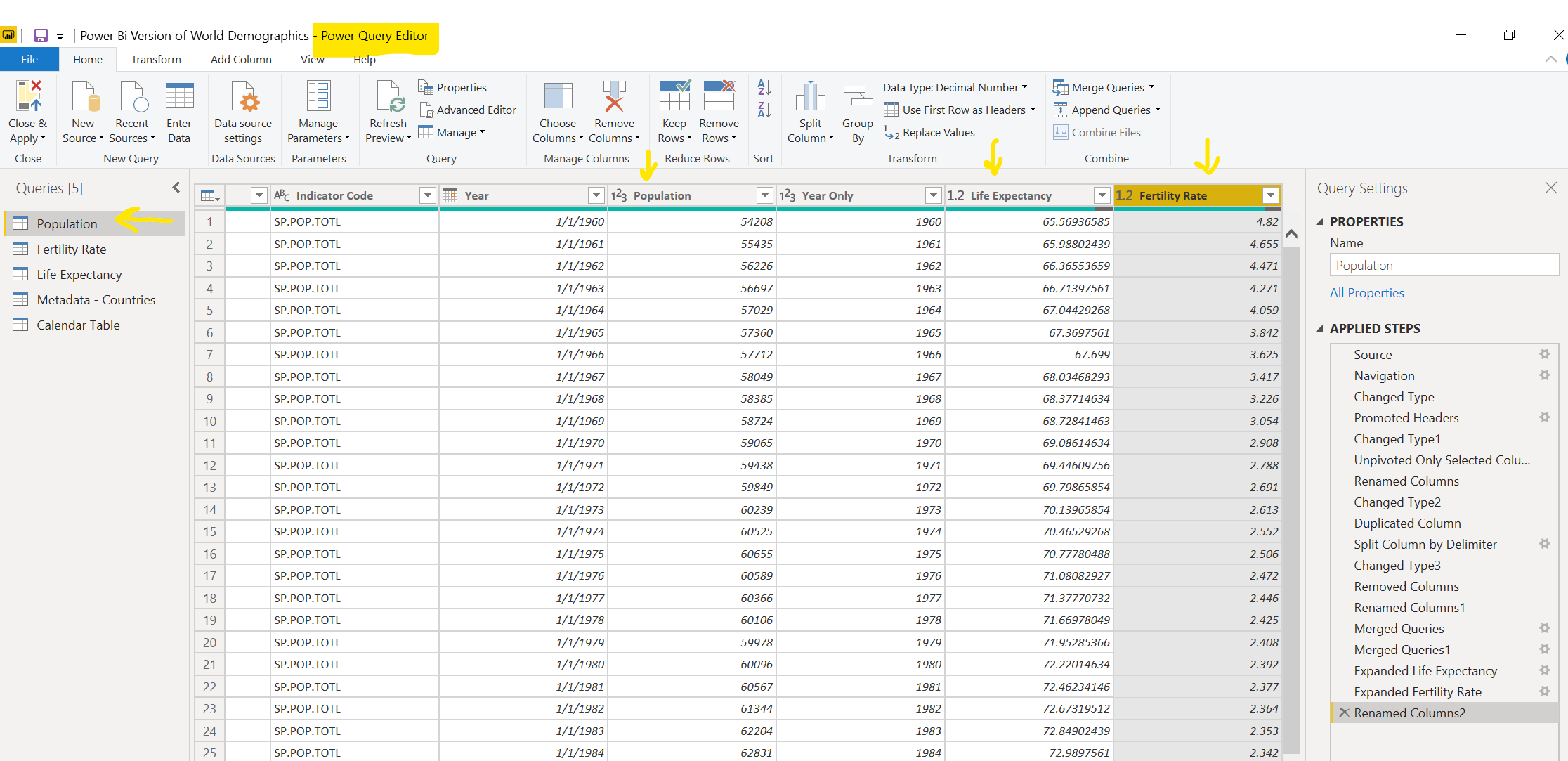
By doing this, the year is pulled from the same table as population, fertility rate and life expectancy data. I also created a year only field by duplicating and splitting the date colum to only include the year and naming it ‘Year Only.’ In this way Year Only can be pulled from the Population Table into the Power BI Play Axis function in the Scatter plot chart to arrive at the animated visualization.
For learning purposes, let’s look at what happens when you leave the data tables in tact in Power BI…
Relationships for the data tables are set up like the following. As you can see, year is in each of the Fertility Rate, Life Expectancy and Population Tables but not in the MetaData table where we get the region. Metadata is connected to the other table by Code in a 1 to many relationship. There are many on the Population, Life Expectancy and Fertility Rate sides because the Year data was transposed so the country code is repeated for each year.
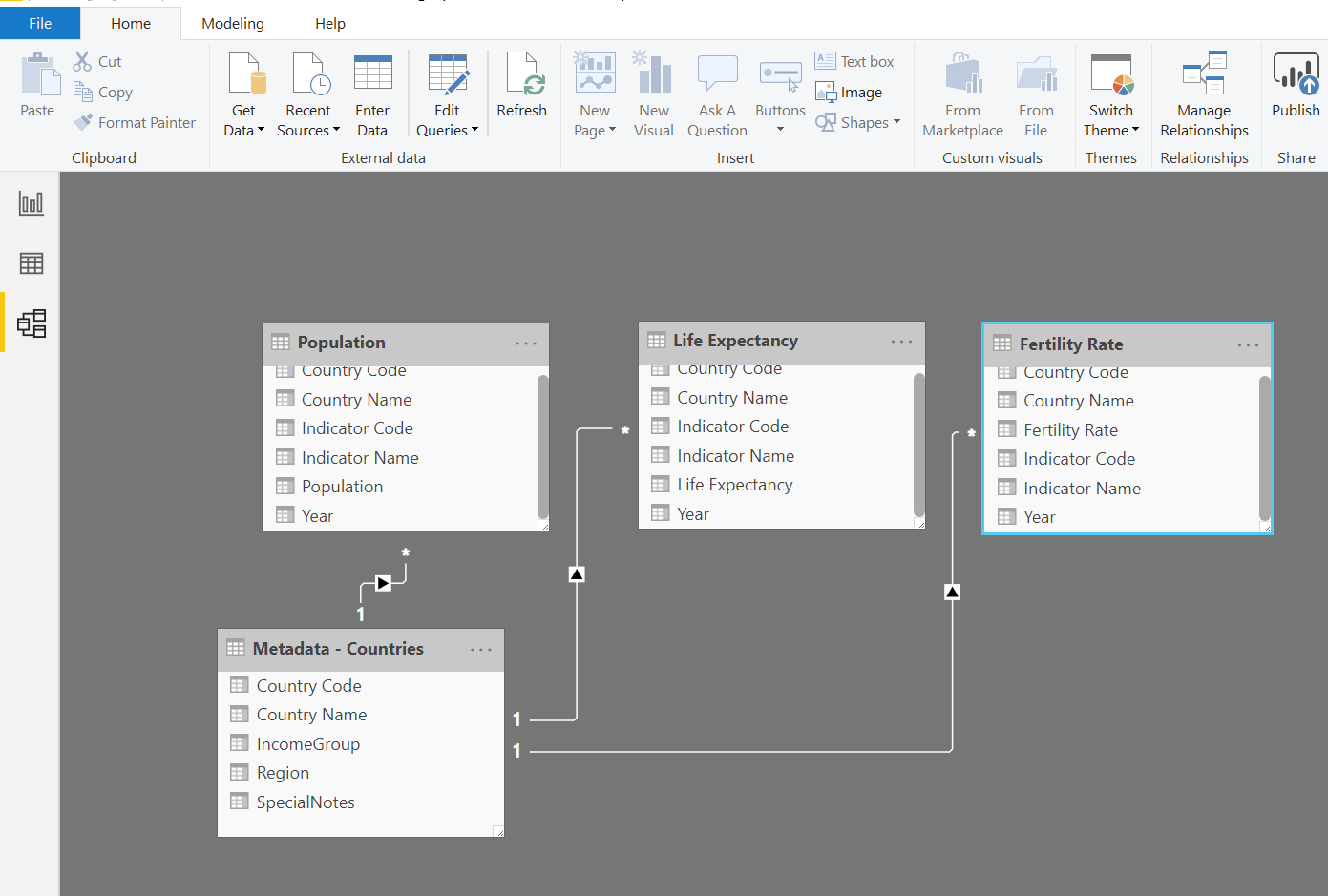
As a result, if you take for instance the year from the Fertility Rate table and plug it into the play axis you get the following:
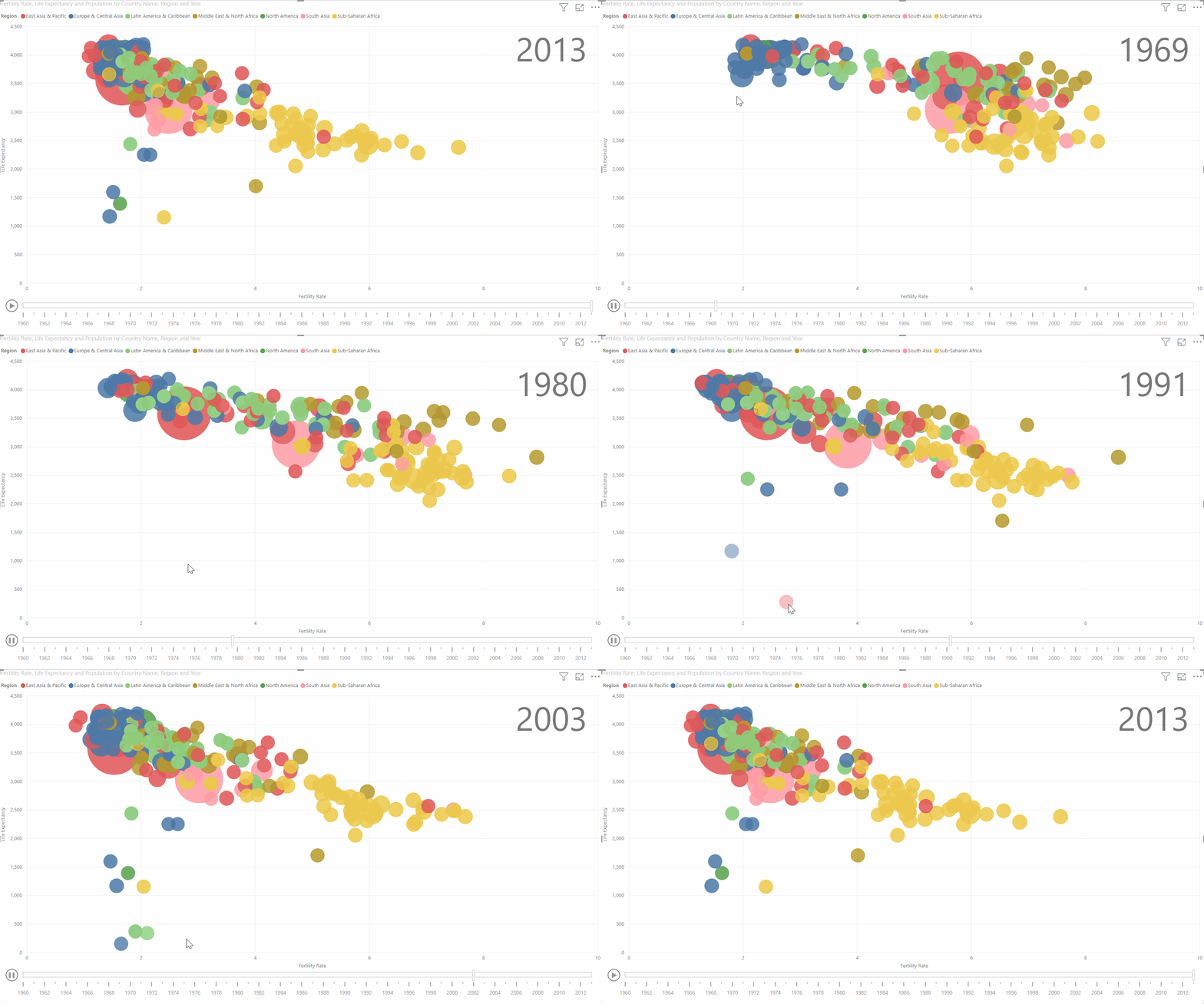
You can see the year is tracked nicely along the bottom. However you will notice that while the x–axis correctly displays the range of fertility rates, the y-axis shows life expectancy up to 4500 (!) and the countries move on one horizontal line on the y-axis while the positions along the x-axis change. Harder to recognize is that population is remaining stagnant throughout time. This is because with only the Year value from the Fertility Rate table, Power BI is summing the values for all the years for Life Expectancy and Population and displaying those continuously on the chart regardless of year. Worth noting on the positive side is that isolating only the changes in fertility rates, you can see clearly in this view which countries are missing annual data (those popping up towards the bottom of the viz). Similar outcomes occur if you insert the year from the Life Expectancy table or the Population table.
Without merge queries, the only way to correct for this is to add a slicer for each of the three years and then use Sync Slicers to get everything to work together properly. But now we have to change the year manually as opposed to having the Play Axis animation capability.

The Play Axis animation also provided the year visibility on the chart. In this situation without the Play Axis, we will create it in another way. To do this, a measure was created with the following coding:

The Year Only Measure was added to a text box and the formatting adjusted accordingly. As you can see the Merge Queries is a quicker and more complete answer for this visualization, but it’s always good to review work-arounds!
Conclusion
In general both tools can create the visualization, but Tableau has the advantage from a design perspective that makes the chart more accurate and visually appealing.
Issues with Power BI
- Population bubbles are not adjustable. They do not have the same gradient adjustment ability as Tableau. This makes for an inaccurate visual representation of relative country population
- No transparency ability in the colors. This is a real problem for a scatter chart of any kind. With transparency you can get a clearer picture of each data point as well as an understanding of the density of the data points
- Color picker is limited. In this case I chose the same colors that I had used in Tableau and changed in Power BI. But they look different because I adjusted the transparency in Tableau. In Power BI you can choose a custom color, but there is no ability to adjust shading, hue, etc. without knowing the code.
- Speed of play is not adjustable as it is in Tableau.
Tableau also has the ability to show trails and marks from the direction of movement which I did not include, but which can be helpful. Does this mean Tableau is better than Power BI? No, but for this particular task at this particular point in time, I’d say so. All the tools are continuously upgrading so in due time the issues mentioned here with Power BI will likely be addressed.
The differences highlight a reason why Analytics Hubs are becoming an important part of the Data Analytics landscape. Different software tools have different strengths and the advent of Analytics Hubs allow all to be brought together in a place where teams can discover what is working the best for particular analytics tasks. Analytics hubs also provide a way for companies to keep and use legacy analytics solutions as their organization grows and may move-on to and adopt other enterprise encompassing software solutions.
Please leave any notes on ways to improve this in the comments!
 Jeny De Figueiredo
Leave a comment